.avif)
Connecting Icypeas MCP and Claude.ai: A Step-by-Step Guide

.avif)
Step-by-step Tutorial
The following tutorial will allow you to use Icypeas MCP from Claude.ai (the online chat client) as well as from Claude Code (the CLI agent).
Estimated time for the whole setup: <1 minute.
Sign in to your Claude.ai account. Click “Customize” in the vertical menu on the right:

Then click “Connectors”:

Click on the “+” icon (next to the magnifying glass icon). Then, click “Add custom connectors”:

Give your connector a specific name, such as “Icypeas MCP” (rather than just “Icypeas”). Also, you must enter the server URL, which is: https://mcp.icypeas.com/mcp

Click “Add”.
Your connector is created.
You must now connect it. Click “Connect”:

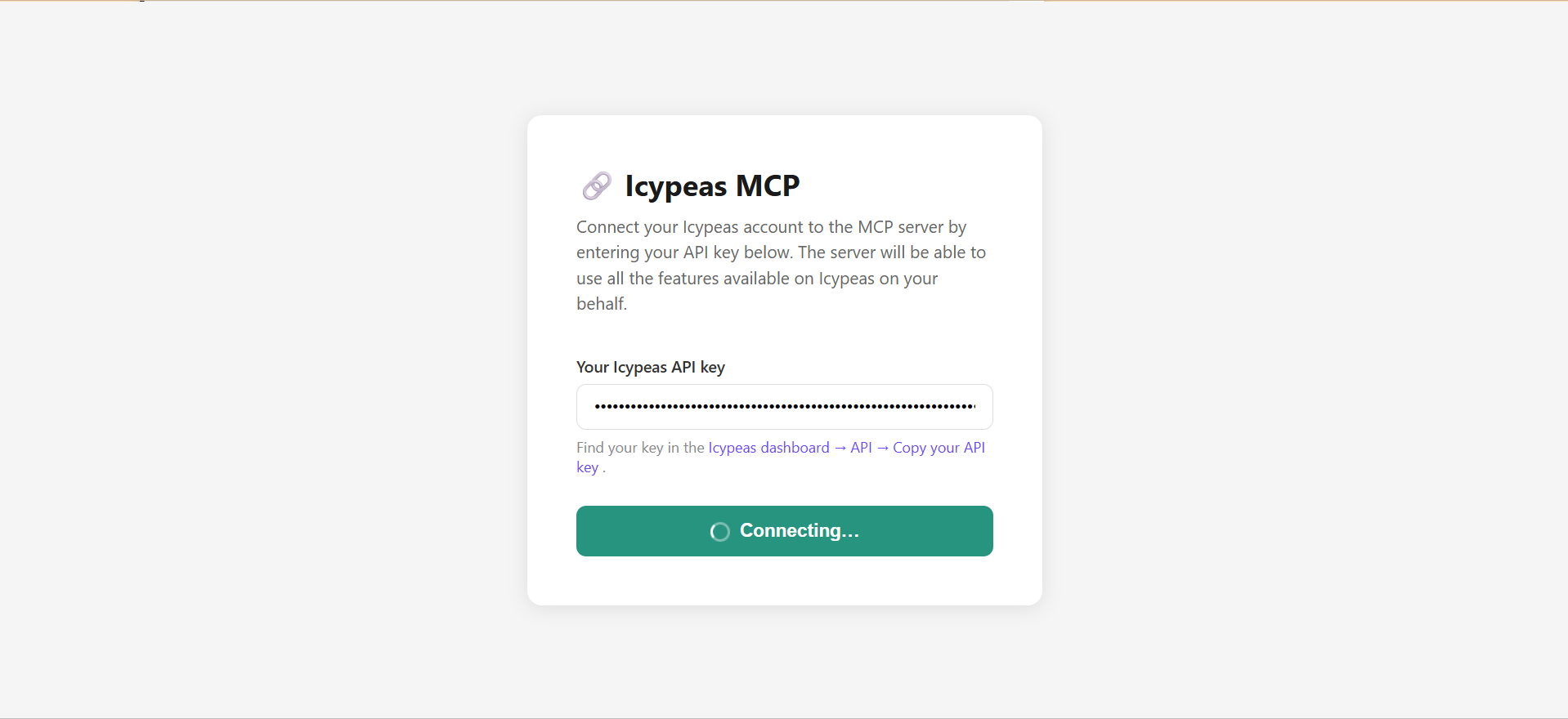
You’re redirected to a page where you must enter your Icypeas API key:

To get your Icypeas API key, sign in to your Icypeas account, click “API” and copy your key.

Wait for 1 second or 2 while you’re connecting your Claude account to the Icypeas MCP server:
Choose the permissions you want:

If you want to keep full control, stay on “Needs approval” (that’s the default setting). If you trust Claude enough, you can choose “Always allow”. This improves fluidity, but if Claude makes mistakes and calls on Icypeas features in vain, you will waste credits unnecessarily.
Then, test your new integration to the Icypeas MCP by prompting something like this:
Using the Icypeas MCP, find 10 software companies in Berlin, then search for their CEOs, and find their emails.
Here is Claude's answer:

Tips for Advanced Users
- Force Claude to see all tools: By default, Claude only 'discovers' the first 5 features (or 'tools' in MCP jargon) when it connects to an MCP server. This means it might miss some of Icypeas's capabilities. If Claude seems unaware of a specific feature, explicitly ask it to review all 21 available tools so it has the full context.
- Watch your credit usage: Always test your pipeline on a small data sample and check your credit usage before scaling up. Occasionally, Claude might overcomplicate a workflow by adding unnecessary steps, so a test run ensures you don't waste your Icypeas credits.
- Combine MCPs for end-to-end pipelines: Connect multiple tools—like HubSpot and Instantly—so Claude can orchestrate your entire workflow. You can automate the full process, from lead sourcing and enrichment straight through to your sequencer.
FAQ
Can I use Icypeas MCP from Claude Code?
Yes. Once you have connected the Icypeas MCP server in Claude.ai Connectors, then you can use it from Claude Code. MCP servers added in Claude.ai are automatically available in Claude Code when you’re signed in with the same Claude.ai account.
Can I see how many credits have been consumed by Claude?
To see how many Icypeas credits Claude consumed, ask Claude to fetch your credit balance before and after the task. The delta gives you the amount of credits consumed during the task.
What kind of tasks can I ask Claude to do once connected to Icypeas?
Once connected, you can prompt Claude to perform tasks directly, such as: "Find the contact email for the CEO of [Company Name]," "Verify this list of email addresses in my CSV," or "Write a Python script that uses the Icypeas MCP to enrich my leads database."
Do I need a paid Icypeas account to use the MCP integration?
You will need an active Icypeas API key to authenticate the MCP server. While Icypeas offers a free trial with 50 free credits, you will eventually need a plan for higher-volume use.
Is it secure to give Claude.ai access to my Icypeas API key?
Yes. The Model Context Protocol (MCP) is designed with security in mind. Claude runs in the cloud on Anthropic secured servers.



















































































.png)


.webp)