.avif)
Fix Gmail Mail Delivery Subsystem Spam: Protect Your B2B

.avif)
Your Gmail inbox fills with “Mail Delivery Subsystem” messages for emails you never remember sending. Sales reps see reply chains break. Marketing ops worries the domain is burning. The worst part is the uncertainty. Did someone get into the account, or is a spammer just using your address as a mask?
That distinction matters more than most advice admits. If the account is compromised, you need containment right now. If the address is only being spoofed, resetting your password might make you feel productive, but it won't stop the flood. The fix depends on the cause.
For B2B teams, this isn't just an annoying inbox problem. It affects outbound trust, internal confidence, and how quickly you can get legitimate messages back to normal.
Table of Contents
- Why Is Your Inbox Flooded with Mail Delivery Subsystem Spam
- The fastest way to tell the difference
- Symptom comparison
- When to escalate the investigation
Why Is Your Inbox Flooded with Mail Delivery Subsystem Spam
When an inbox suddenly looks broken, users search for Gmail Mail Delivery Subsystem spam. Bounce notices arrive in batches. Subjects mention failed delivery or delays. Some refer to messages you never wrote, sent to people you've never heard of.
There are usually two explanations. Either someone has access to the mailbox and is sending through it, or someone is forging your address so the blowback lands on you. Those are very different problems, and treating them as the same thing wastes time.
A real compromise usually leaves fingerprints inside the account. Spoofing often doesn't. That's the first principle to keep in mind before you touch passwords, DNS, or user training.
Practical rule: Don't start with the fix. Start with evidence from the Sent folder, account activity, and message headers.
The confusion gets worse because Gmail delivery failures can look official even when the underlying spam isn't. Some scams lean on that exact effect. They want the message to look like an operational alert instead of junk, because busy people click operational alerts faster.
For sales and marketing teams, the risk isn't only security. It's interruption. Reps stop trusting the mailbox. Ops teams pause campaigns. Managers ask whether the domain is blacklisted. The right move is calmer and simpler than most panic responses. First identify whether the mail did leave your account. Then decide whether you're dealing with abuse of the mailbox or abuse of the address.
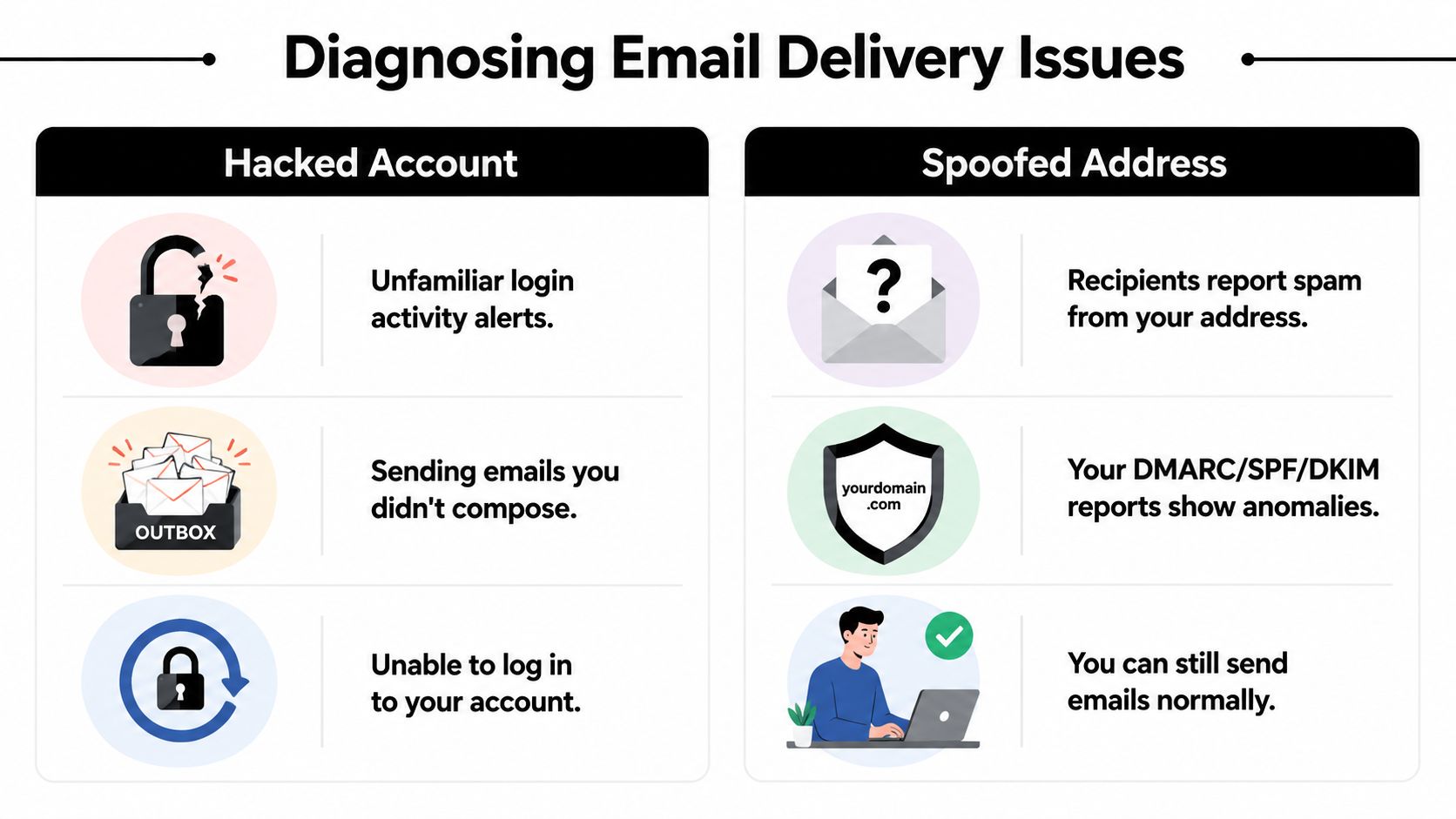
Diagnosing the Problem Hacked Account or Spoofed Address
When people see Gmail Mail Delivery Subsystem spam, they often assume the account was hacked. Sometimes that's true. Often it isn't.
Data from a Microsoft Answers discussion says 78% of users receiving “Mail Delivery Subsystem” spam who find no corresponding sent emails are experiencing address spoofing, not a direct account hack. That's why so many people change passwords and still keep getting bounce traffic. The issue may be identity abuse, not mailbox takeover, as noted in Microsoft's discussion of repeated Mail Delivery Subsystem messages.
The fastest way to tell the difference
Start with three checks.
- Open Sent mail. If you see messages you didn't write, treat it like an account compromise until proven otherwise.
- Check account activity and devices. Unfamiliar sessions, security alerts, or forced sign-outs point toward intrusion.
- Ask whether normal sending still works. If your team can still send normally and there's no trace of rogue mail in Sent, spoofing becomes much more likely.
That last point matters in real-world triage. Spoofing is noisy but external. A compromised account is internal and urgent.
If you manage a shared sales inbox or a founder mailbox, it also helps to review automation. Sometimes a connected tool creates confusion. A sequence platform, CRM integration, or forwarding rule can send mail people forgot existed. Before you call it a hack, verify what systems had permission to send.
Symptom comparison
Here's the short version teams can use.
| Symptom | Likely a Hacked Account | Likely a Spoofed Address |
|---|---|---|
| Unknown emails appear in Sent | Yes | No |
| You get login alerts you don't recognize | Yes | Uncommon |
| Recipients say “you emailed me” but nothing is in Sent | Uncommon | Yes |
| You can't access the account normally | Yes | No |
| Bounce notices arrive but mailbox behavior seems normal | Possible | Yes |
| Connected apps or forwarding rules changed | Yes | No |
This is the part most generic guides skip. They lump every bounce under “secure your account” and move on. That's incomplete advice.
If there's no evidence the mailbox sent the mail, don't assume the mailbox is the problem.
For larger teams, security monitoring helps narrow this down faster. If your company tracks unusual sign-ins, session anomalies, and abrupt sending pattern changes, a behavior-focused workflow like UTMStack's anomaly detection guide is useful because it pushes the team toward evidence instead of guesswork.
When to escalate the investigation
Escalate immediately if multiple signals point to compromise. That means rogue mail in Sent, suspicious app access, security alerts, or users getting locked out.
Escalate differently if the mailbox looks clean but the bounces continue. In that case, the investigation shifts away from the user account and toward domain authentication, spoofing indicators, and whether your domain is protected with SPF, DKIM, and DMARC.
The biggest operational mistake is running both playbooks at full intensity at once. That burns time. Diagnose first, then apply the fix that matches the problem.
How to Analyze Email Headers for Clues
Headers tell you whether the message is really what it claims to be. You don't need to be a mail admin to get value from them. You only need to know where to look and which fields matter.
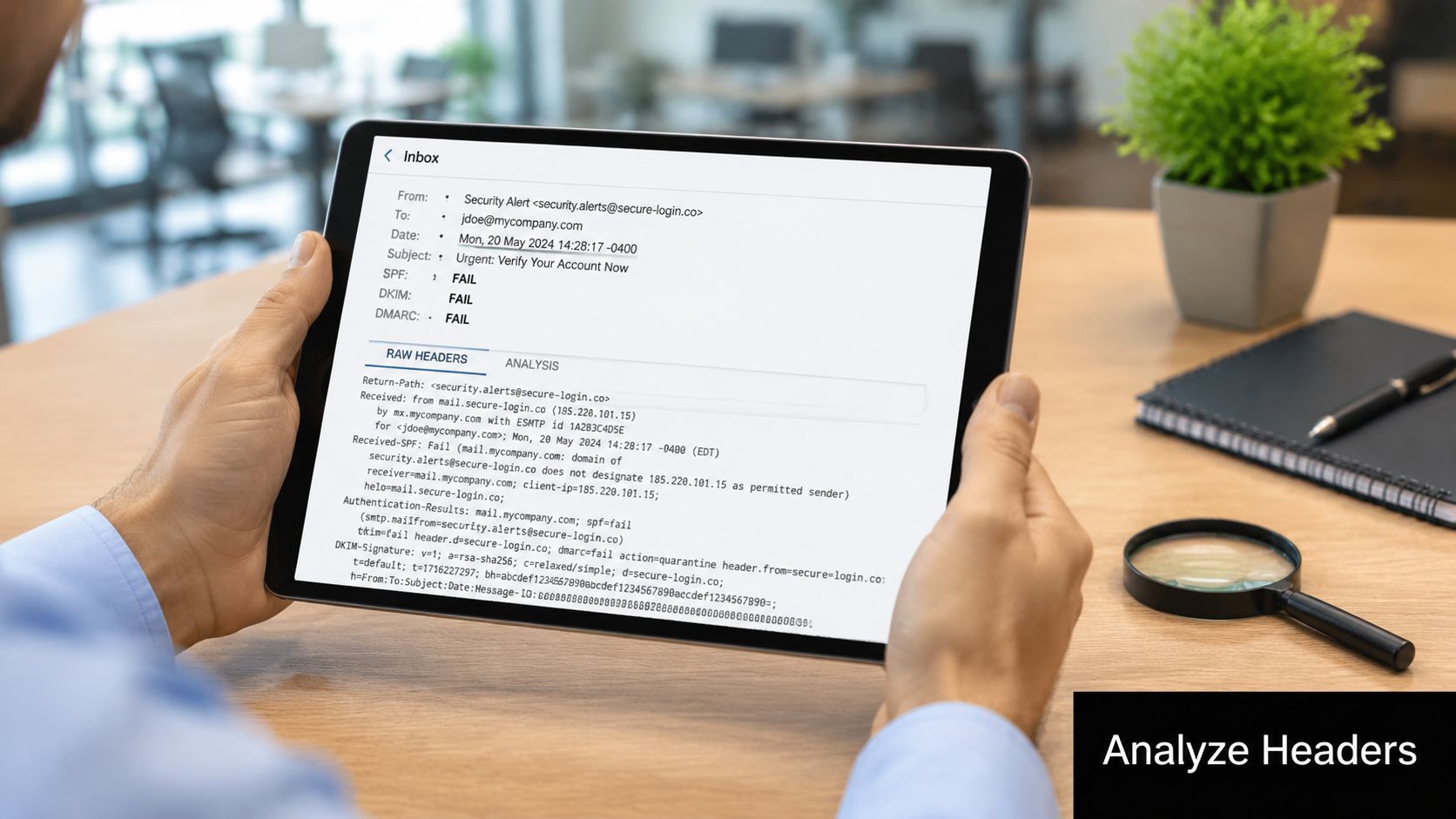
Google's phishing guidance around these messages warns that scams often use subjects like “Delivery Status Notification (Delay)” and may list the recipient as their own address to trigger panic. A key clue is in the headers. Users should verify the “mailed-by” or “signed-by” domain because attackers can fake the visible sender more easily than the server signature, as described in Google's guidance on Mail Delivery Subsystem spam.
What to open inside Gmail
Open one suspicious message. In Gmail, use the message menu and view the original message. That gives you the raw details.
Ignore most of the noise. Focus on three items:
Authentication-Results
This shows whether the message passed or failed authentication checks.Received-SPF
This gives a direct clue about SPF evaluation. “Fail” or “softfail” is a strong sign the visible sender identity doesn't match the sending permission.Mailed-by or signed-by
This helps you compare the claimed sender with the system that handled or signed the message.
If you're trying to identify whether the address belongs to a real person or just a fabricated lure inside the message, a tool for reverse email address lookup can help with context before your team decides whether to block, report, or investigate further.
The three header fields that matter most
You don't need to decode every line. Use a simple reading method.
- If SPF fails and the sender looks like you: that points toward spoofing.
- If the visible From line says one thing but mailed-by or signed-by says something else: treat the message as suspicious.
- If authentication passes but you still didn't send the mail: investigate connected apps, delegated access, and more advanced abuse.
Header review is your reality check. The visible sender is branding. The authentication fields are evidence.
One practical warning. A legit-looking sender like Mail Delivery Subsystem can still be part of the trick. The message may be dressed like infrastructure mail but still be trying to get you to click. Don't trust the label. Trust the authentication trail and the mailbox evidence.
For sales teams, this header habit pays off beyond this one issue. Once reps and ops leads know where “mailed-by” and “signed-by” live, they get much better at spotting fake account alerts, fake invoice threads, and fake shared-doc notifications.
Solution Path A Securing a Compromised Gmail Account
If your diagnosis points to an actual compromise, speed matters. A spammer sending through your mailbox can do more than create clutter. They can burn trust with prospects, trigger internal confusion, and keep sending until you remove every path back in.
A high volume of bounce notices is one of the clearest warning signs. According to MailerToGo's explanation of Gmail Mail Delivery Subsystem alerts, receiving 25 to 30 Mail Delivery Subsystem notifications per day is a critical symptom of account compromise. The same guidance notes that this level of bounce activity indicates a rise in hard bounces, and Google Postmaster Tools advises developers to alert at a 1% hard bounce rate as a danger threshold. That's why a compromised mailbox is not just a security incident. It's also a sender reputation problem.
Immediate containment steps
Do these in order.
Change the password immediately
Use a unique password you haven't used elsewhere. If your team keeps internal how-to docs for access recovery, this kind of password change walkthrough is the right kind of simple checklist to hand non-technical users during an incident.Force sign-out on other sessions
Don't assume the attacker leaves when the password changes. Review active sessions and revoke anything you don't recognize.Audit third-party app access
A lot of cleanup efforts fail at this point. Attackers don't always rely on the password alone. If a malicious or compromised app still has OAuth access, it can continue to read or send even after a password reset.Inspect filters and forwarding rules
Look for rules that archive security warnings, forward mail externally, or mark attacker responses as read. These are common persistence tricks.Turn on two-factor authentication
This won't fix spoofing, but it does reduce the chance of a repeat compromise when the mailbox itself was exposed.
Operator note: If you only change the password and skip app access plus filters, you may think the issue is fixed when it isn't.
Deliverability cleanup after the lockout
Once access is back under your control, clean up the sending side.
Review the Sent folder for patterns. Were the messages going to random addresses, old lists, or obvious garbage? That helps you estimate whether a user was phished, whether an app was abused, or whether a list import created collateral damage.
Then look at anything connected to outbound activity:
- CRM and sequencing tools
- Website forms or autoresponders
- Shared inbox integrations
- Forwarding aliases and delegated mailboxes
If the account was used to blast bad addresses, your next job is to stop further bounce generation. Pause non-essential sends. Remove questionable lists. Confirm that no rogue filters are hiding replies from legitimate prospects.
This is also the time to brief the team. Tell reps not to ignore prospect complaints about weird mail from your domain. Those replies often reveal the scope of the incident faster than internal dashboards do.
A compromised mailbox requires a complete sweep. Partial cleanup leaves too many openings.
Solution Path B Stopping Spoofing with Email Authentication
Spoofing is the problem many organizations misread. The mailbox feels under attack, but the attacker may never have touched it. They're just borrowing your identity badly enough to trigger bounce traffic and confusion.
The fix lives at the domain level, not in the user's inbox settings.
A Gmail users discussion notes that without published SPF and DKIM records, around 90% of private domains are vulnerable to spoofing. It also explains that proper authentication, paired with a DMARC policy, tells receiving systems to reject forged messages instead of accepting them and sending the mess back toward the victim. That's the core reason domain owners should set this up, as described in the Gmail users discussion on spoofed Mailer-Daemon bounce-backs.
What SPF DKIM and DMARC actually do
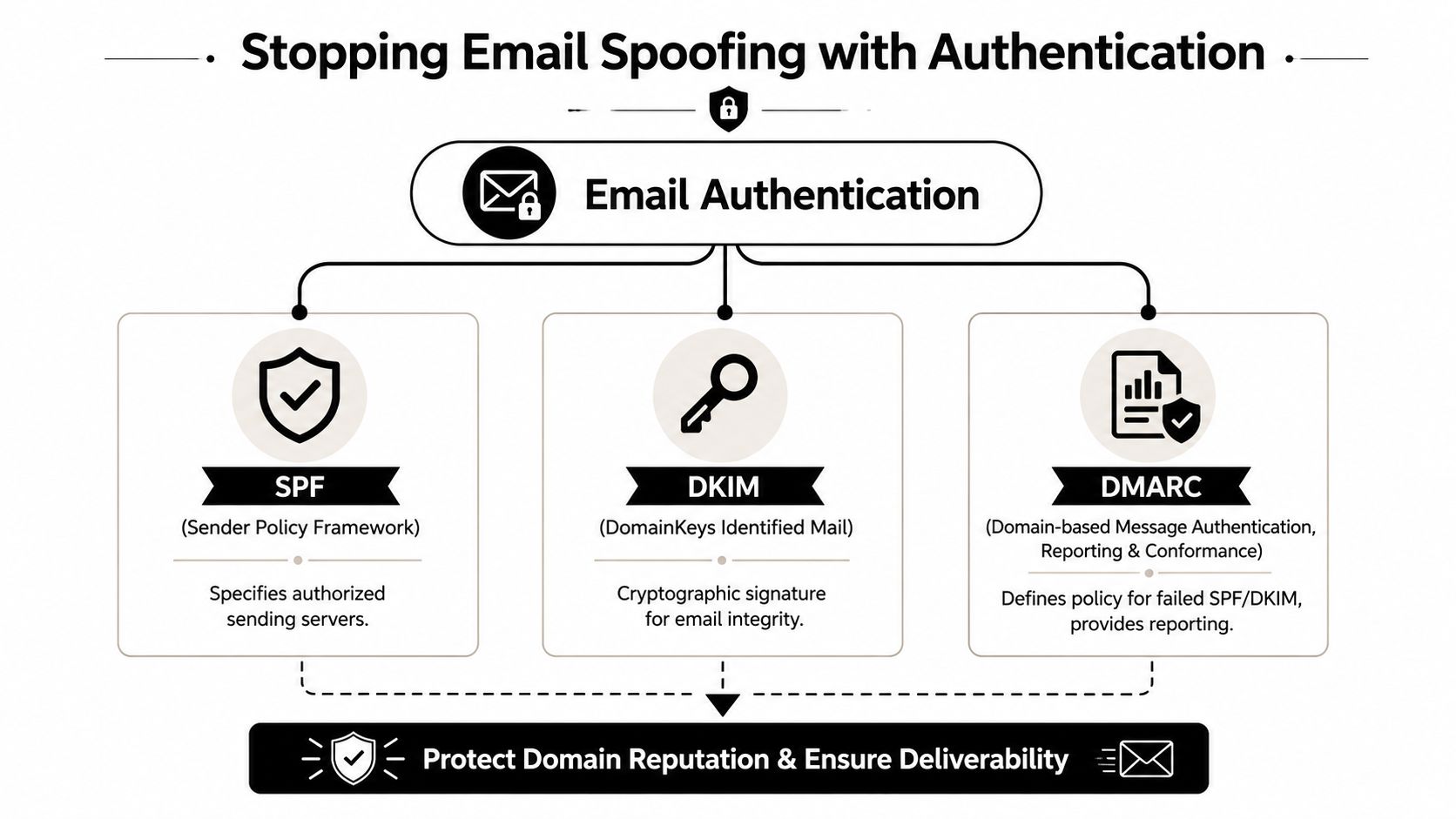
Think of them as three different checks on a physical letter.
- SPF is the approved sender list. It tells receiving systems which services are allowed to send on behalf of your domain.
- DKIM is the signature seal. It helps prove the message wasn't altered and that an authorized system signed it.
- DMARC is the policy instruction. It tells receiving servers what to do when SPF or DKIM doesn't align, and it supports reporting.
For non-technical teams, the practical takeaway is simple. SPF and DKIM prove legitimacy. DMARC gives receivers enforcement rules.
A basic DMARC policy is often where effective change happens because it tells other servers they don't have to “be nice” to forged mail. They can reject it.
Here's the business trade-off. Strict enforcement protects the brand, but you need to know every real sending platform first. If your company uses Gmail, a CRM, a newsletter platform, a support desk, and a billing system, all legitimate senders must be covered before you tighten policy.
Authentication is not a one-time IT task. It's a sending inventory exercise.
For teams dealing with executive impersonation, vendor fraud attempts, or repeated spoofing, this broader strategic checklist for email impersonation is a useful companion because it connects technical controls with brand-protection response.
A short visual walkthrough helps if you need to align ops and leadership before changing policy:
What a practical rollout looks like
Don't treat authentication as an abstract security project. Treat it like sender operations.
Start with an inventory of every system that sends mail using your domain. That includes obvious tools and forgotten ones. Sales engagement tools, calendar apps, support platforms, webinar systems, product notifications, and form handlers all count.
Then move in this order:
Publish SPF for approved senders only
Keep it current. Old vendors should come out when you stop using them.Enable DKIM where each platform supports it
Most mainstream sending tools provide a setup flow. Use the platform's documented path rather than guessing.Add DMARC with a policy that matches your readiness
If you go straight to a hard reject policy before inventory is complete, you can block legitimate mail. If you never enforce, spoofing stays easier than it should be.Review reports and failure patterns
The point isn't to collect more data. It's to find unknown senders and close gaps.
If you're a B2B team with multiple departments sending from the same domain, ownership matters. Someone should be accountable for the domain's sending map. Without that, SPF develops issues, DKIM coverage gets uneven, and DMARC turns into a checkbox instead of a control.
Spoofing doesn't stop because users become more careful. It stops when receiving systems have enough proof to distrust unauthenticated mail that claims to be from you.
Prevention Best Practices for B2B Senders
Fixing the immediate issue is good. Preventing the next one is better. B2B teams that send a lot of outreach need a repeatable process, not just a cleanup playbook for bad days.
A recent Reddit discussion described a “clever tactic” where spammers send to a fake address while placing your address in the From field, which causes an official-looking Gmail bounce to land in your inbox. One practical defense is creating a manual Gmail filter to trash these messages when they match the known pattern, as discussed in this Reddit thread about Mail Delivery Subsystem spam tactics.
Build a process not just a fix
A durable setup usually includes four habits.
Keep lists clean
Bad addresses create normal bounce noise, and that noise can hide more serious issues. If your team needs an easy way to plug email hygiene into lead workflows, tools like the Orbit AI Neverbounce app are worth considering as part of list maintenance.Verify before large sends
This matters for SDR imports, event lists, and old CRM segments. Teams comparing options can use a guide to email verification services to build a process that reduces unnecessary bounces before campaigns go live.Monitor sender health
Google Postmaster Tools is useful for watching domain reputation and bounce behavior. You don't need to obsess over it daily, but someone should look regularly enough to spot drift.Train the team on message verification
Reps should know how to inspect suspicious alerts, not just delete them. That's how you catch issues early without turning every weird message into a security incident.
Use filters and reporting without overreacting
Manual Gmail filters are not a full solution, but they are useful against recurring patterns that keep slipping through. They help individual users stay productive while the primary control, authentication and policy, is handled at the domain level.
At the same time, don't let filters hide a larger problem. If multiple users report unusual bounce notices, verify whether the pattern is isolated spam, list quality fallout, or a wider sender issue.
The best B2B sending teams separate inbox triage from domain protection. One keeps users sane. The other protects the brand.
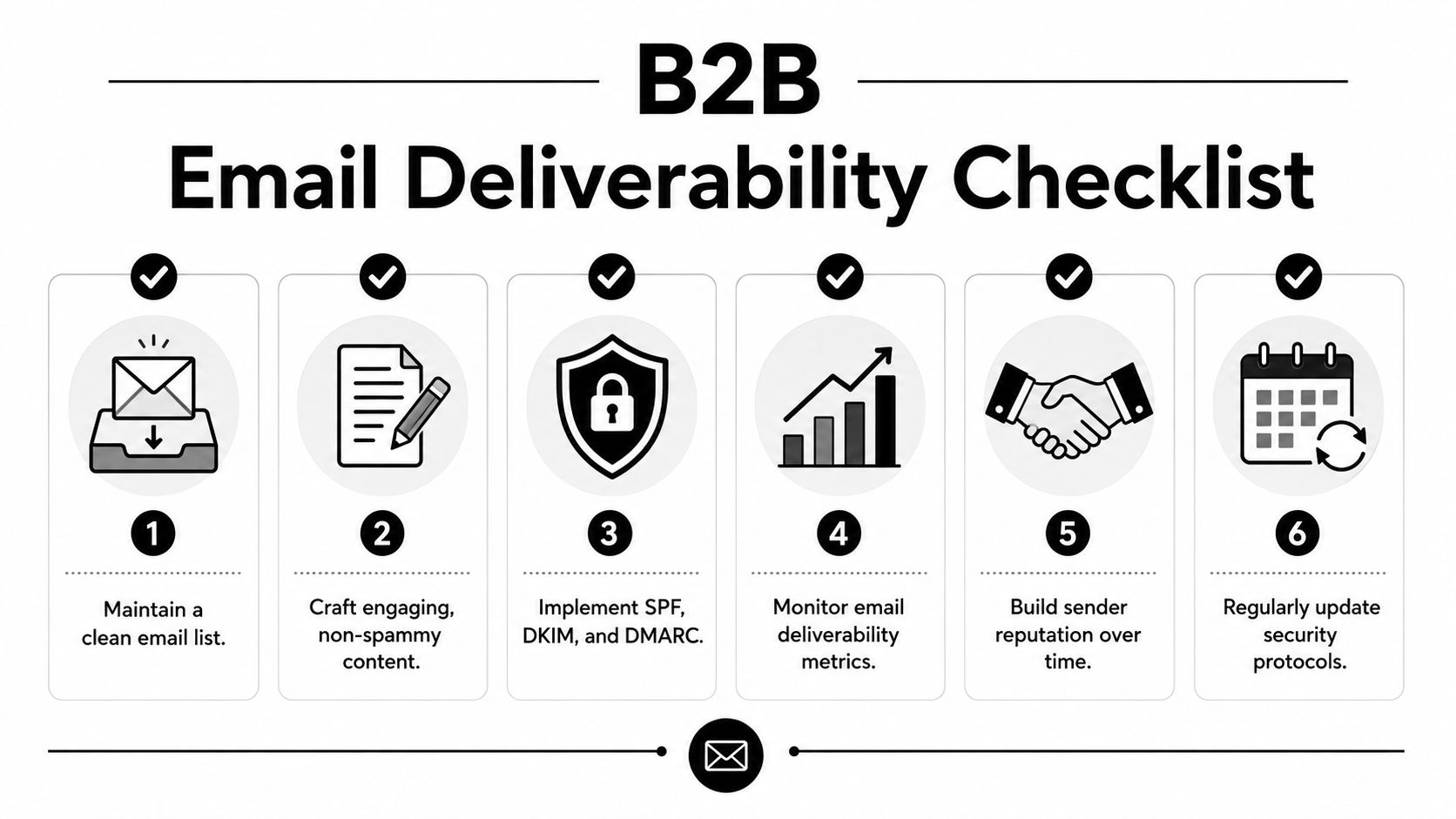
A solid operating rhythm looks like this: clean lists, monitor sending health, maintain SPF/DKIM/DMARC, review suspicious alerts, and document who owns what. That's how you stop Gmail Mail Delivery Subsystem spam from becoming a recurring fire drill.
If your team wants fewer bounces before outreach starts, Icypeas helps sales and ops teams find, verify, and enrich professional contact data so campaigns start cleaner and stay more deliverable.



































































.png)



.webp)