.avif)
How to Send a Recurring Email Outlook Guide 2026

.avif)
Monday morning comes fast when you're staring at the same stalled opportunities, the same customer check-ins, or the same internal update you know needs to go out every week. Many organizations begin with Outlook because it's already available, but the first time you try to make a message repeat on its own, you hit the same wall everyone else does. Outlook doesn't have a native recurring-send button, so recurring email becomes a process problem, not just a composing problem.
The practical question isn't whether you can get one message to repeat. It's whether the setup will still work after the list changes, the owner goes on leave, or IT tightens the rules around automation. That's why the usual choices are usually template plus calendar recurrence, Power Automate, or a minimal VBA script in classic Outlook.
Table of Contents
Why Outlook Does Not Send Recurring Emails by Default
A sales rep wants to ping every stalled deal on Monday morning. A customer success manager wants a weekly usage digest to land before the team's standup. The request sounds simple, but Outlook treats each send as a separate action, not as one recurring communication object that can repeat on its own.
Microsoft says new Outlook currently has no built-in way to schedule recurring emails directly, and recurring workflows are usually built with calendar recurrence, templates, or Power Automate. That limitation sets the boundary for every workaround that follows. If you stay inside Outlook alone, you are not automating repetition, you are only creating reminders around it.
The gap that matters in practice
Classic Outlook and new Outlook both let you draft, delay, and organize messages. Neither one gives you a native recurring-send engine that can wake up every week, resolve a list, and send the same message without human intervention. That is why most “recurring email Outlook” setups begin with a workaround instead of a built-in feature.
Practical rule: if the message has to go out without you opening Outlook, you are already beyond Outlook's native feature set.
That leaves three workable paths. The first is the template plus calendar method, which fits a single owner with a fixed cadence. The second is Power Automate, which suits Microsoft 365 teams that want scheduled sends they can maintain as a process. The third is a minimal VBA script, which gives desktop power users more control than templates offer, but without building a full workflow platform.
The trade-off is not just convenience. Once a message becomes recurring, a missed send, a stale recipient list, or a bad schedule shows up again and again. A setup that looks fine on day one can become fragile when ownership changes, someone goes on leave, or the recipient list needs regular cleanup.
Choosing the Right Method for Your Situation
A recurring send should fit the job, not the preference of the person setting it up. A solo operator sending one weekly customer reminder needs a different setup from a RevOps team managing shared-mailbox follow-up, and both differ from an enterprise group that needs a process IT can support. Choose the wrong method, and the setup usually looks fine on day one but turns into a nuisance by week four.
The template plus calendar approach is the lightest lift. It is quick to start, needs no extra platform, and works well when one person owns the message from draft to send. The trade-off is straightforward, the process still depends on a human opening the template, checking the content, and sending it on time.
The Power Automate path is the strongest Microsoft 365 option for repeated sends. Microsoft guidance and independent how-to content point users toward scheduled cloud flows with the Outlook action Send an email (V2) because Outlook itself does not offer true recurring-send scheduling, and a practical comparison of methods shows why that matters Microsoft Answers, Power Automate recurring email guide, A comparison chart outlining different methods for automating recurring emails including manual workarounds, VBA scripts, and third-party services.. It holds up better when the message has to survive leave coverage, shared mailbox access, and ownership changes. It also gives you a cleaner path when the recipient list has to come from another system.
The VBA route sits in the middle. It is more technical than templates, less operationally mature than a cloud flow, and locked to classic Outlook desktop. It can work as a compact desktop-only helper, but it is a poor fit for anything that needs to outlive one employee's laptop or one department's habits.
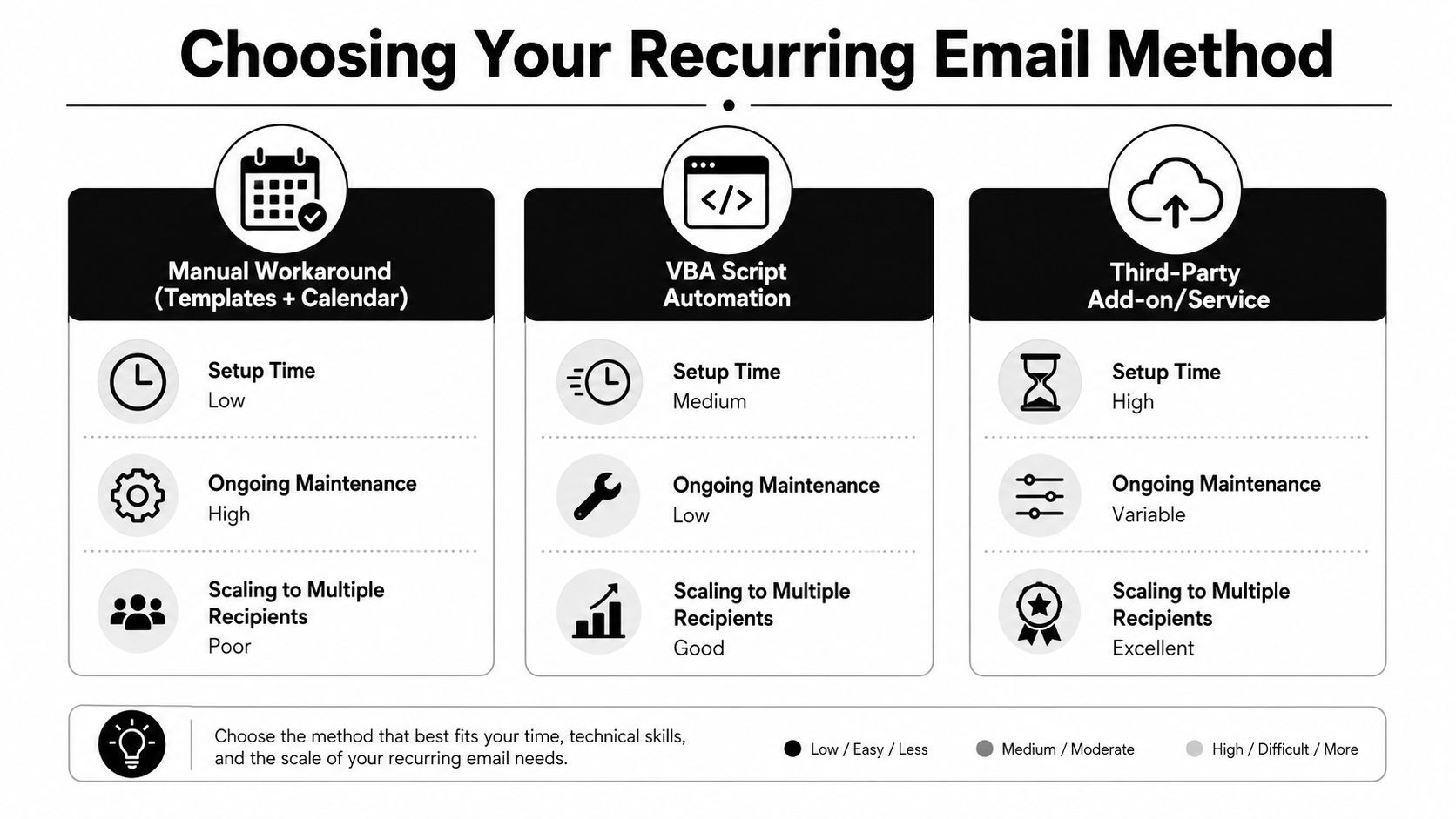
| Method | Setup Time | Maintenance | Best For | Main Risk |
|---|---|---|---|---|
| Template plus Calendar | Low | High | One sender, fixed cadence | Human forgetfulness |
| VBA Script | Medium | Medium | Desktop power users | Classic Outlook dependence |
| Power Automate | Medium | Lower over time | Teams and Microsoft 365 workflows | Flow misconfiguration |
Solo user: use templates plus calendar unless the send truly needs to run without you.
Small team: use Power Automate if the message still matters after handoff.
Enterprise: default to Power Automate, because governance and continuity matter more than speed.
The Template and Calendar Recurrence Workaround
The most documented built-in workaround is still the simplest one. Write the email once, save it as a template, and set a recurring reminder so Outlook nudges you to reopen, update, and send it. That's not automation in the strict sense, but it does solve the “I keep forgetting to send this every week” problem for many people.
How the template path works in classic and new Outlook
In classic Outlook, save the draft through File, Save As, Outlook Template. In new Outlook, use the Templates area and save the message there. The pattern stays the same in both cases, the template stores the reusable body, subject, and structure, while the calendar item handles the timing.
That's why this workaround still shows up in Microsoft guidance and independent tutorials. It keeps the actual send in your hands, which is useful when the copy changes a little each cycle or when you want to review the message before it leaves. If your audience is fixed and you're the only owner, this is the fastest route that doesn't require new software.
When you need a recurring prompt rather than a recurring send, create a calendar recurrence or a task reminder that tells you when to reopen the template. The cleanest use case is a weekly message to the same list where you want a human sanity check before each send. For example, if the subject line or intro sentence changes based on the week, the manual step is a feature, not a bug.
For ready-made wording, sample templates from Approved Lux can save time when you're building the first version of a recurring message.
The minute-based delay trap
Some users try to fake recurrence with Outlook desktop's rule-based delay. That's where the trap appears. If you use a rule like defer delivery by a number of minutes, weekly timing means 10,080 minutes, and the rule has to be maintained manually if the cadence changes Cerkl recurring email guidance.
If the number feels awkward to manage, that's because it is. A delay rule is interval math, not a real recurrence engine.
That's the main limit of this method. It's a manual nudge, not a self-running system, and it works best when one person sends to a stable list and can tolerate a little hands-on upkeep. If the workflow starts to look like a process, not a reminder, it's time to move up a level.
Building a Scheduled Flow in Power Automate
Power Automate is the Microsoft 365 path I'd trust first when the recurring send has to keep working after the initial setup. You create a Scheduled cloud flow, set explicit recurrence parameters, then add the Outlook connector action Send an email (V2). That gives you deterministic timing instead of relying on someone to remember the reminder.
The core flow setup
Start with Create, then pick Scheduled cloud flow. Set the start time, time zone, and frequency up front, because those three fields decide when the first send happens and how the schedule repeats. If the message should run weekly, switch the recurrence to weekly, then pick the day or days and the hour you want.
The practical value is that the schedule lives in the flow, not in someone's calendar. That makes it easier to read, easier to hand over, and easier to trace when the business asks who owns recurring outreach. It also scales better when you need more than one recurring message.
Add Send an email (V2) from the Outlook connector, then fill in the recipient, subject, and body. If the email needs to pull personalized values, use dynamic content from a SharePoint list or an Excel table. That's the point where Power Automate starts to pull ahead of templates, because each row can feed a different recipient or a different message variant.
If your workflow depends on list hygiene or contact discovery before the send, keep your enrichment stack outside the flow and feed Power Automate with clean records from the start. The integration approach is easier to maintain when your input data is already verified and structured, which is why many teams keep their enrichment and verification steps separate from the scheduled send. Icypeas integrations is one example of where teams often anchor that upstream data work.
Test before production
The single mistake I see most often is flipping a flow live without a test run. A misconfigured schedule can send at the wrong hour, to the wrong people, or with broken dynamic content. That's not a theoretical risk, it's exactly how recurring email turns into a support issue.
Test it once with a safe recipient, then review the run history before production.
For teams that need a broader Microsoft automation reference point, Power Automate use cases for SMBs is a useful companion read. If you need anything beyond basic Outlook actions, keep licensing in mind too, because broader automation scenarios can move beyond the simplest connector setup. The serious advantage here is not just recurrence, it's repeatability with less human babysitting.
Automating Recurring Sends with a Minimal VBA Script
VBA still has a place if you live in classic Outlook desktop and want a compact way to trigger a recurring send from inside the client. It's not the modern route, and it won't solve governance on its own, but it can be the right fit for a power user who wants a lightweight helper without building a cloud flow.
A small macro that opens the template and sends
Paste the macro into Developer, then Visual Basic Editor, then ThisOutlookSession. This version opens a saved template, fills a few fields, and sends it.
Sub SendRecurringEmail()Dim olApp As Outlook.ApplicationDim olMail As Outlook.MailItemDim templatePath As String' Point this to your .oft templatetemplatePath = "C:\Templates\RecurringEmail.oft"Set olApp = Outlook.ApplicationSet olMail = olApp.CreateItemFromTemplate(templatePath)' Update recipients and message detailsolMail.To = "recipient@example.com"olMail.Subject = "Weekly Update - " & Format(Date, "mmm d")olMail.Body = Replace(olMail.Body, "{DATE}", Format(Date, "mmmm d, yyyy"))' Queue the messageolMail.SendEnd SubThat script is intentionally plain. It assumes the template already contains the body structure you want, then swaps in the current date and sends. If you need more logic, such as pulling multiple recipients or changing content by day, you can extend it, but the minute the code starts to become a workflow engine, Power Automate usually makes more sense.
How to keep it running
Macro security matters. You may need to sign the macro or lower security in a controlled way, depending on your environment. If you want true automation, schedule it with Windows Task Scheduler or trigger it from a recurring calendar reminder that opens Outlook and runs the macro.
The biggest constraint is scope. This only works in classic desktop Outlook, and it assumes the machine and profile stay available. If the laptop sleeps, the user account changes, or Outlook is updated in a way that affects macros, the send stops with it.
I'd treat VBA as a tactical bridge, not a long-term operating model. It can be useful for one person, but it's fragile compared with a scheduled cloud flow and it's more exposed to local device issues than many individuals realize.
Why it still matters
The upside is speed. A small macro can be faster to set up than a full flow when the requirement is narrow and the user is technical. The downside is maintenance, because the person who wrote it is usually the only person who understands it well enough to fix it later.
Deliverability and Compliance for Recurring B2B Sends
Recurring email gets risky when people treat it like a calendar trick instead of a live communication process. A bad address that bounces once is annoying. A bad address in a weekly send becomes a pattern, and patterns are what hurt reputation, create noise for sales reps, and make compliance reviews harder.
Clean the list before the schedule
The recurring workflow is only as stable as the recipient list feeding it. If you're sending to stale contacts, catch-alls, or addresses that no longer map to real inboxes, every recurrence compounds the problem. That's why list verification belongs upstream of the schedule, not after the first bounce.
For a practical hygiene baseline, keep your lists verified before they enter the flow and recheck them whenever a segment goes quiet or a set of contacts changes. If your team wants a deeper hygiene reference, the internal guide on email deliverability best practices is a useful companion to the scheduling work.
Compliance is part of the workflow
Recurring outreach also raises consent and notice questions. If the message is marketing-adjacent, make sure you're clear on the lawful basis under GDPR, the opt-out expectations under CCPA, and the physical address plus unsubscribe requirements under CAN-SPAM. A recurring pattern amplifies any gap in consent, because the same issue repeats on a fixed cadence.
That's one reason teams pair scheduling with verification and domain hardening. If you're tightening Microsoft 365 mail flow, Ollo's DMARC hardening guide is a practical reference for the authentication side of the house. Recurrence doesn't excuse weak sending fundamentals, it makes them more visible.
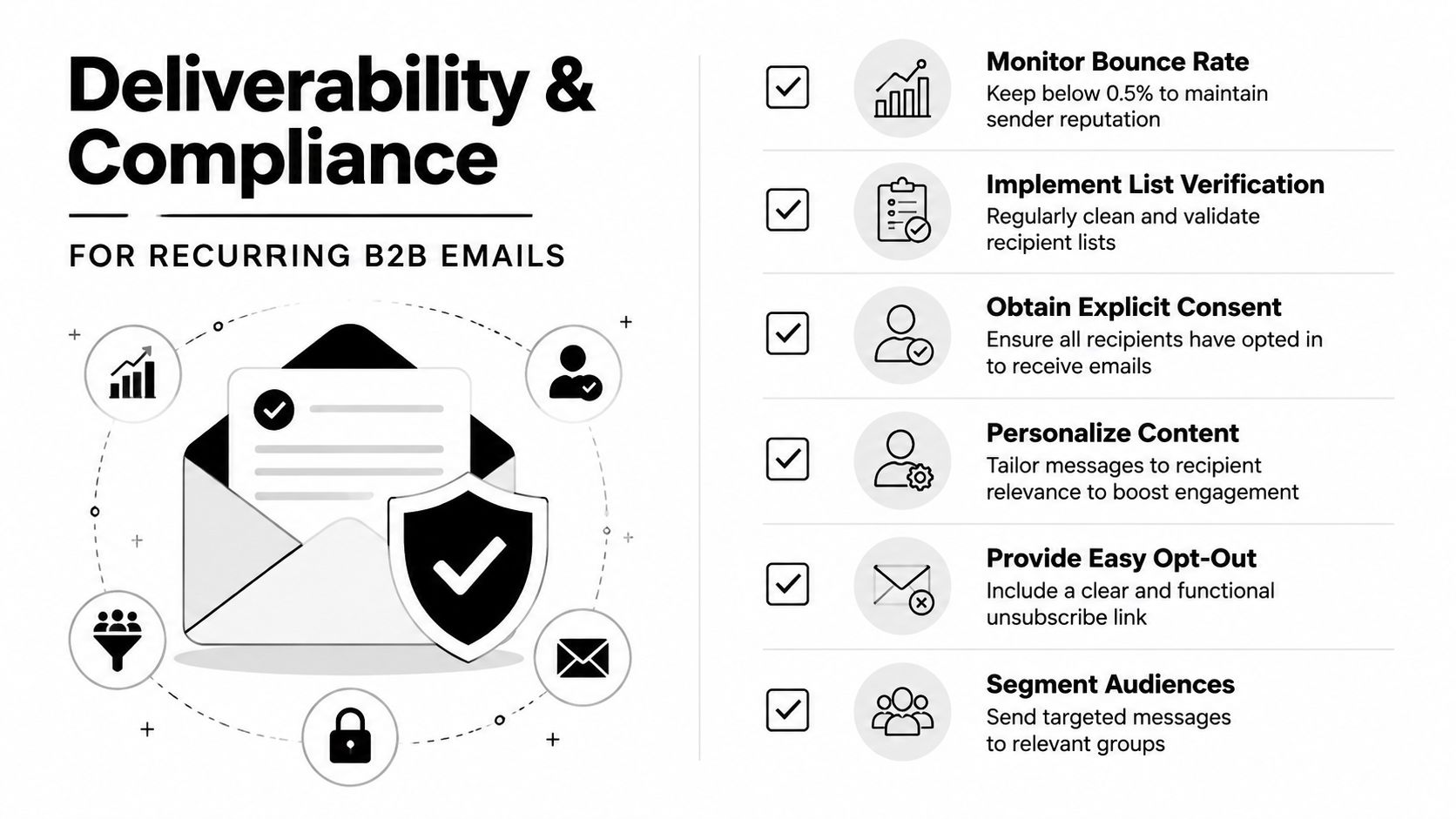
A recurring send should also stay relevant. If the content is personalized, segmented, and easy to opt out of, the message is less likely to irritate recipients and more likely to stay useful over time. That's the deliverability lesson here, repetition only works when the underlying list and message stay clean.
Making Recurring Email Survive IT Controls and Team Turnover
Three months after a recurring send goes live, the question is usually not whether the setup worked on day one. It is who owns it now, what happens when that person is out, and whether IT policy still allows the flow to run. Microsoft's own discussion around recurring email shows that the public guidance is still mostly tactical, even though real recurring sends have to survive IT controls, shared mailbox permissions, and employee turnover Microsoft Answers.
What breaks after the first month
A template reminder works until the owner leaves. A VBA macro works until the desktop setup changes. Power Automate usually holds up better, but only if the team documents who can edit the flow, which mailbox it uses, and what happens if a password change or policy update interrupts the connection.
That is why recurring email should be treated like any other operational process. Put the owner, the fallback owner, the mailbox, and the schedule in writing. If the send uses a shared mailbox, confirm the permissions and make sure someone else can still maintain it if the original builder disappears. This also aligns with broader security practices that help preserve process continuity, which you can read more about on our security page.
A Practical Decision Checklist
- Solo user: choose the template plus calendar approach if the send is personal and fixed.
- Small team: choose Power Automate if the send must survive handoff.
- Enterprise: choose Power Automate and document ownership, mailbox access, and review cadence.
- Any list-based send: verify addresses before the flow goes live.
- Any long-lived workflow: document the schedule, the recipient source, and the fallback path.
The long-term answer is clear. If Microsoft keeps moving Outlook deeper into cloud workflows, Power Automate is the investment-worthy path. The template workaround still has a place for one-off personal use, but it is not the foundation I would build around for a team that cares about continuity.
If your recurring sends depend on clean data, stable deliverability, and fewer surprises when ownership changes, Icypeas helps teams verify contacts, enrich records, and keep outbound lists ready for reliable scheduling. It is a practical fit for the recurring email workflow described here, especially when you want the send to keep working after the first person sets it up.




































































.png)



.webp)